

[fusion_builder_container hundred_percent=”no” hundred_percent_height=”no” hundred_percent_height_scroll=”no” hundred_percent_height_center_content=”yes” equal_height_columns=”no” menu_anchor=”” hide_on_mobile=”small-visibility,medium-visibility,large-visibility” status=”published” publish_date=”” class=”” id=”” background_color=”” background_image=”” background_position=”center center” background_repeat=”no-repeat” fade=”no” background_parallax=”none” enable_mobile=”no” parallax_speed=”0.3″ video_mp4=”” video_webm=”” video_ogv=”” video_url=”” video_aspect_ratio=”16:9″ video_loop=”yes” video_mute=”yes” video_preview_image=”” border_size=”” border_color=”” border_style=”solid” margin_top=”” margin_bottom=”” padding_top=”” padding_right=”” padding_bottom=”” padding_left=””][fusion_builder_row][fusion_builder_column type=”1_1″ type=”1_1″ layout=”1_1″ spacing=”” center_content=”no” link=”” target=”_self” min_height=”” hide_on_mobile=”small-visibility,medium-visibility,large-visibility” class=”” id=”” background_color=”” background_image=”” background_image_id=”” background_position=”left top” background_repeat=”no-repeat” hover_type=”none” border_size=”0″ border_color=”” border_style=”solid” border_position=”all” padding_top=”” padding_right=”” padding_bottom=”” padding_left=”” margin_top=”” margin_bottom=”” animation_type=”” animation_direction=”left” animation_speed=”0.3″ animation_offset=”” last=”true” first=”true”][fusion_separator style_type=”none” hide_on_mobile=”small-visibility,medium-visibility,large-visibility” class=”” id=”” sep_color=”” top_margin=”30″ bottom_margin=”” border_size=”2″ icon=”” icon_circle=”” icon_circle_color=”” width=”” alignment=”center” /][fusion_text columns=”” column_min_width=”” column_spacing=”” rule_style=”default” rule_size=”” rule_color=”” hide_on_mobile=”small-visibility,medium-visibility,large-visibility” class=”” id=”” animation_type=”” animation_direction=”left” animation_speed=”0.3″ animation_offset=””]

یکی از قابلیت های ضبط در دستگاه DVR یا NVR هایک ویژن، قابلیت تشخیص حرکت یا Motion Detection است. فعالسازی قابلیت تشخیص حرکت در NVR به طور غیر مستقیم باعث کاهش هزینه های سیستم مداربسته می شود. با فعال کردن این قابلیت تنها زمانی تصاویر بر روی هارد ذخیره می شوند که سوژه متحرکی وارد تصویر شود. به این ترتیب تصاویر غیر ضروری فضای هارد را اشغال نکرده و دیگر نیازی به صرف هزینه اضافی برای خرید هارد نیست. در این آموزش قصد داریم تا شما را با نحوه فعالسازی قابلیت تشخیص حرکت در NVR  هایک ویژن آشنا کنیم.

[/fusion_text][fusion_title title_type=”text” rotation_effect=”bounceIn” display_time=”1200″ highlight_effect=”circle” loop_animation=”off” highlight_width=”9″ highlight_top_margin=”0″ before_text=”” rotation_text=”” highlight_text=”” after_text=”” content_align=”right” size=”2″ font_size=”” animated_font_size=”” line_height=”” letter_spacing=”” text_color=”” animated_text_color=”” highlight_color=”” style_type=”single solid” sep_color=”” hide_on_mobile=”small-visibility,medium-visibility,large-visibility” class=”” id=”” margin_bottom=”30″ margin_top=”50″]

نحوه فعالسازی قابلیت تشخیص حرکت در NVR هایک ویژن

[/fusion_title][fusion_text columns=”” column_min_width=”” column_spacing=”” rule_style=”default” rule_size=”” rule_color=”” hide_on_mobile=”small-visibility,medium-visibility,large-visibility” class=”” id=””]

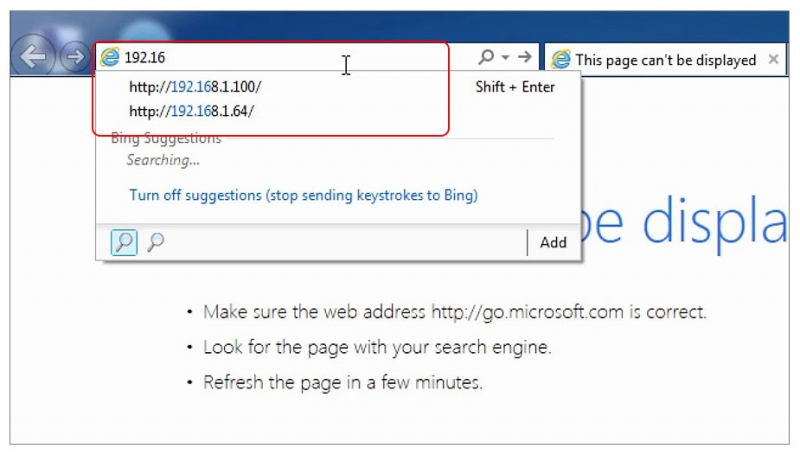
ابتدا دستگاه NVR هایک ویژن خود را به کامپیوتر متصل کنید. صفحه مرورگر را باز کرده و آی پی دستگاه خود را وارد کنید. در صفحه باز شده یوزر و پسورد خود را وارد نمائید.
[/fusion_text][fusion_imageframe image_id=”8552|800″ max_width=”” style_type=”” blur=”” stylecolor=”” hover_type=”none” bordersize=”” bordercolor=”” borderradius=”” align=”center” lightbox=”no” gallery_id=”” lightbox_image=”” lightbox_image_id=”” alt=”” link=”” linktarget=”_self” hide_on_mobile=”small-visibility,medium-visibility,large-visibility” class=”” id=”” animation_type=”” animation_direction=”left” animation_speed=”0.3″ animation_offset=””]https://hikvision.center/wp-content/uploads/2019/06/01-9-800×455.jpg[/fusion_imageframe][fusion_separator style_type=”single solid” hide_on_mobile=”small-visibility,medium-visibility,large-visibility” class=”” id=”” sep_color=”” top_margin=”60″ bottom_margin=”60″ border_size=”2″ icon=”” icon_circle=”” icon_circle_color=”” width=”” alignment=”center” /][fusion_text columns=”” column_min_width=”” column_spacing=”” rule_style=”default” rule_size=”” rule_color=”” hide_on_mobile=”small-visibility,medium-visibility,large-visibility” class=”” id=””]

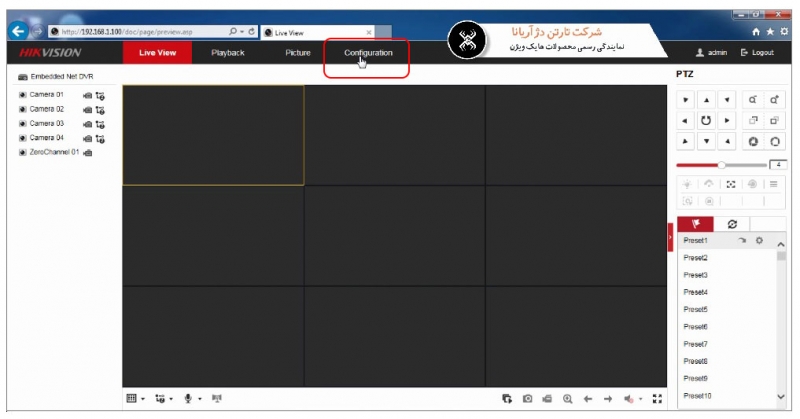
2. بعد از وارد شدن از تب های بالا Configuration را انتخاب کنید.
[/fusion_text][fusion_imageframe image_id=”8553|800″ max_width=”” style_type=”” blur=”” stylecolor=”” hover_type=”none” bordersize=”” bordercolor=”” borderradius=”” align=”center” lightbox=”no” gallery_id=”” lightbox_image=”” lightbox_image_id=”” alt=”” link=”” linktarget=”_self” hide_on_mobile=”small-visibility,medium-visibility,large-visibility” class=”” id=”” animation_type=”” animation_direction=”left” animation_speed=”0.3″ animation_offset=””]https://hikvision.center/wp-content/uploads/2019/06/02-9-800×419.jpg[/fusion_imageframe][fusion_separator style_type=”single solid” hide_on_mobile=”small-visibility,medium-visibility,large-visibility” class=”” id=”” sep_color=”” top_margin=”60″ bottom_margin=”60″ border_size=”2″ icon=”” icon_circle=”” icon_circle_color=”” width=”” alignment=”center” /][fusion_text columns=”” column_min_width=”” column_spacing=”” rule_style=”default” rule_size=”” rule_color=”” hide_on_mobile=”small-visibility,medium-visibility,large-visibility” class=”” id=””]

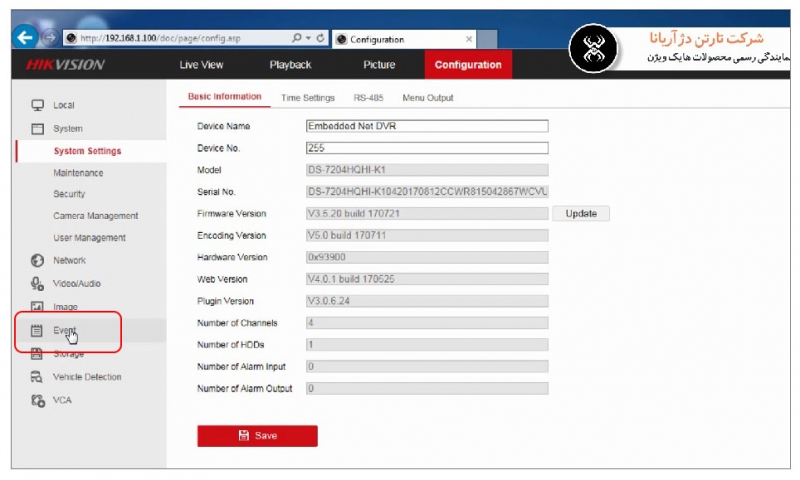
3. سپس از ستون سمت چپ گزینه Event و سپس Basic Event را انتخاب می کنیم.
[/fusion_text][fusion_imageframe image_id=”8554|800″ max_width=”” style_type=”” blur=”” stylecolor=”” hover_type=”none” bordersize=”” bordercolor=”” borderradius=”” align=”center” lightbox=”no” gallery_id=”” lightbox_image=”” lightbox_image_id=”” alt=”” link=”” linktarget=”_self” hide_on_mobile=”small-visibility,medium-visibility,large-visibility” class=”” id=”” animation_type=”” animation_direction=”left” animation_speed=”0.3″ animation_offset=””]https://hikvision.center/wp-content/uploads/2019/06/03-7-800×480.jpg[/fusion_imageframe][fusion_separator style_type=”single solid” hide_on_mobile=”small-visibility,medium-visibility,large-visibility” class=”” id=”” sep_color=”” top_margin=”60″ bottom_margin=”60″ border_size=”2″ icon=”” icon_circle=”” icon_circle_color=”” width=”” alignment=”center” /][fusion_text columns=”” column_min_width=”” column_spacing=”” rule_style=”default” rule_size=”” rule_color=”” hide_on_mobile=”small-visibility,medium-visibility,large-visibility” class=”” id=””]

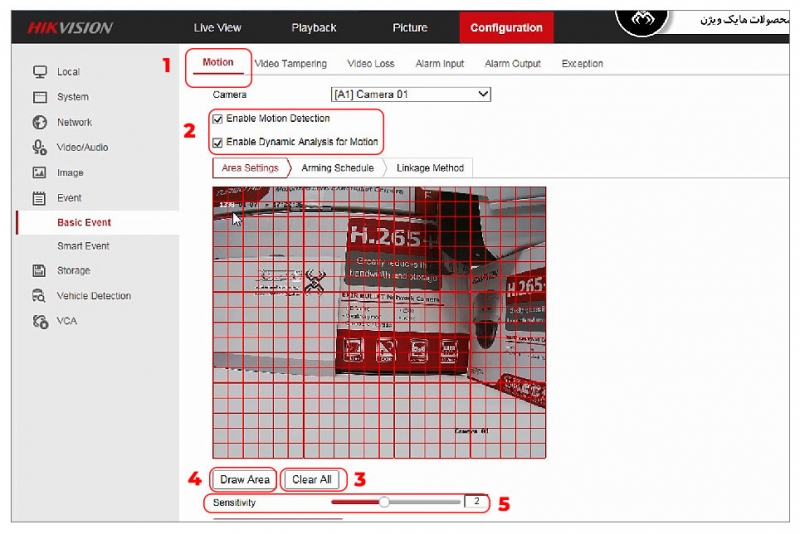
4. در صفحه ای که باز می شود در تب Motionد(1) تیک های Enable Motion Detction و Enable Dynamic Analysisد(2) را بزنید. دقت کنید که اگر بخواهید در تمام تصویر قابلیت Motion Detection هایک ویژن اعمال گردد، باید در تصویر مشخص شده تمام صفحه به صورت چهارخانه دربیاید. و یا در غیر این صورت با زدن گزینه Clear Allد(3) تمام قسمت ها را پاک کرده و با زدن گزینه Draw Areaد(4) هر قسمتی را که می خواهید با موس روی تصویر انتخاب نمائید. در قسمت Sensivityد(5) نیز می توانید میزان حساسیت را تعیین نمائید. در پایان گزینه Save را بزنید.

نکته: لازم است که بدانید برای هر کدام از دوربین ها باید به صورت جداگانه قابلیت موشن را فعال کنید.
[/fusion_text][fusion_imageframe image_id=”8555|800″ max_width=”” style_type=”” blur=”” stylecolor=”” hover_type=”none” bordersize=”” bordercolor=”” borderradius=”” align=”center” lightbox=”no” gallery_id=”” lightbox_image=”” lightbox_image_id=”” alt=”” link=”” linktarget=”_self” hide_on_mobile=”small-visibility,medium-visibility,large-visibility” class=”” id=”” animation_type=”” animation_direction=”left” animation_speed=”0.3″ animation_offset=””]https://hikvision.center/wp-content/uploads/2019/06/04-11-800×534.jpg[/fusion_imageframe][fusion_separator style_type=”single solid” hide_on_mobile=”small-visibility,medium-visibility,large-visibility” class=”” id=”” sep_color=”” top_margin=”60″ bottom_margin=”60″ border_size=”2″ icon=”” icon_circle=”” icon_circle_color=”” width=”” alignment=”center” /][fusion_text columns=”” column_min_width=”” column_spacing=”” rule_style=”default” rule_size=”” rule_color=”” hide_on_mobile=”small-visibility,medium-visibility,large-visibility” class=”” id=””]

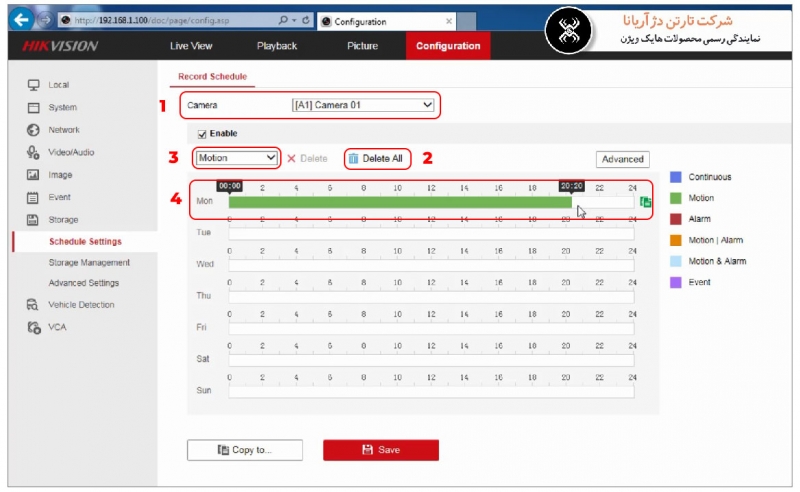
5. در ادامه از ستون کناری بر روی قسمت Storage بروید. در تب Schedule Setting ابتدا دوربین مورد نظر خود را انتخاب کنید (1). مشاهده خواهید نمود که دستگاه در حالت ضبط Continues قرار دارد با زدن گزینه Delete Allد(2) تنظیمات قبلی را پاک کنید. از قسمت مشخص شده Motionد(3) را انتخاب کنید. در قسمت روزهای هفته نیز با کشیدن موس ساعات دلخواه را انتخاب کنید (4). در پایان روی گزینه Save کلیک کنید. برای فعالسازی هر کدام از دوربین ها باید مطابق با توضیحات گفته شده عمل نمائید.
[/fusion_text][fusion_imageframe image_id=”8556|800″ max_width=”” style_type=”” blur=”” stylecolor=”” hover_type=”none” bordersize=”” bordercolor=”” borderradius=”” align=”center” lightbox=”no” gallery_id=”” lightbox_image=”” lightbox_image_id=”” alt=”” link=”” linktarget=”_self” hide_on_mobile=”small-visibility,medium-visibility,large-visibility” class=”” id=”” animation_type=”” animation_direction=”left” animation_speed=”0.3″ animation_offset=””]https://hikvision.center/wp-content/uploads/2019/06/05-9-800×492.jpg[/fusion_imageframe][fusion_separator style_type=”none” hide_on_mobile=”small-visibility,medium-visibility,large-visibility” class=”” id=”” sep_color=”” top_margin=”60″ bottom_margin=”” border_size=”” icon=”” icon_circle=”” icon_circle_color=”” width=”” alignment=”center” /][fusion_text columns=”” column_min_width=”” column_spacing=”” rule_style=”default” rule_size=”” rule_color=”” hide_on_mobile=”small-visibility,medium-visibility,large-visibility” class=”” id=””]

مطالب مرتبط:

[/fusion_text][/fusion_builder_column][/fusion_builder_row][/fusion_builder_container]

4/5 - (1 امتیاز)