

[fusion_builder_container hundred_percent=”no” hundred_percent_height=”no” hundred_percent_height_scroll=”no” hundred_percent_height_center_content=”yes” equal_height_columns=”no” menu_anchor=”” hide_on_mobile=”small-visibility,medium-visibility,large-visibility” status=”published” publish_date=”” class=”” id=”” background_color=”” background_image=”” background_position=”center center” background_repeat=”no-repeat” fade=”no” background_parallax=”none” enable_mobile=”no” parallax_speed=”0.3″ video_mp4=”” video_webm=”” video_ogv=”” video_url=”” video_aspect_ratio=”16:9″ video_loop=”yes” video_mute=”yes” video_preview_image=”” border_size=”” border_color=”” border_style=”solid” margin_top=”” margin_bottom=”” padding_top=”” padding_right=”” padding_bottom=”” padding_left=””][fusion_builder_row][fusion_builder_column type=”1_1″ type=”1_1″ layout=”1_1″ spacing=”” center_content=”no” link=”” target=”_self” min_height=”” hide_on_mobile=”small-visibility,medium-visibility,large-visibility” class=”” id=”” background_color=”” background_image=”” background_image_id=”” background_position=”left top” background_repeat=”no-repeat” hover_type=”none” border_size=”0″ border_color=”” border_style=”solid” border_position=”all” padding_top=”” padding_right=”” padding_bottom=”” padding_left=”” margin_top=”” margin_bottom=”” animation_type=”” animation_direction=”left” animation_speed=”0.3″ animation_offset=”” last=”true” first=”true”][fusion_separator style_type=”none” hide_on_mobile=”small-visibility,medium-visibility,large-visibility” class=”” id=”” sep_color=”” top_margin=”30″ bottom_margin=”” border_size=”” icon=”” icon_circle=”” icon_circle_color=”” width=”” alignment=”center” /][fusion_text columns=”” column_min_width=”” column_spacing=”” rule_style=”default” rule_size=”” rule_color=”” hide_on_mobile=”small-visibility,medium-visibility,large-visibility” class=”” id=”” animation_type=”” animation_direction=”left” animation_speed=”0.3″ animation_offset=””]
همانطور که در مقالات قبلی به طور مفصل توضیح دادیم تصاویر سیستم مداربسته دارای حجم بالایی هستند و باید برای ارسال یا ذخیره سازی فشرده شده و از حجمشان کاسته شود. به این منظور در سیستم های مداربسته هایک ویژن از کدک H.265+ که آخرین و پیشرفته ترین نوع از فشرده سازی تصاویر مداربسته است استفاده شده است. اما برای فعال کردن آن در سیستم خود نیاز است تا مراحل زیر را طی کنید. با مراحل فعالسازی H.265+ هایک ویژن با ما همراه باشید.
[/fusion_text][fusion_title title_type=”text” rotation_effect=”bounceIn” display_time=”1200″ highlight_effect=”circle” loop_animation=”off” highlight_width=”9″ highlight_top_margin=”0″ before_text=”” rotation_text=”” highlight_text=”” after_text=”” content_align=”right” size=”2″ font_size=”” animated_font_size=”” line_height=”” letter_spacing=”” text_color=”” animated_text_color=”” highlight_color=”” style_type=”single solid” sep_color=”” hide_on_mobile=”small-visibility,medium-visibility,large-visibility” class=”” id=”” margin_top=”30″ margin_bottom=”30″]
فعالسازی H.265+ هایک ویژن
[/fusion_title][fusion_text columns=”” column_min_width=”” column_spacing=”” rule_style=”default” rule_size=”” rule_color=”” hide_on_mobile=”small-visibility,medium-visibility,large-visibility” class=”” id=””]
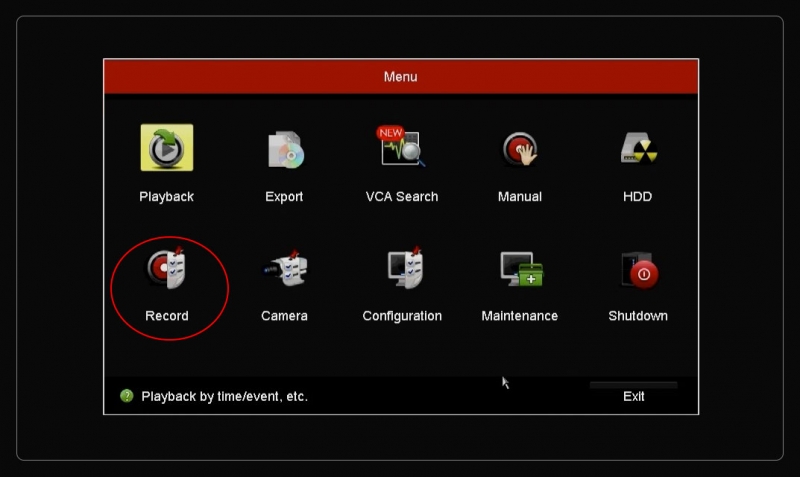
1. برای فعالسازی H.265+ هایک ویژن ابتدا وارد منوی DVR هایک ویژن شده و روی گزینه Record کلیک کنید.
[/fusion_text][fusion_imageframe image_id=”8608|800″ max_width=”” style_type=”” blur=”” stylecolor=”” hover_type=”zoomin” bordersize=”1″ bordercolor=”” borderradius=”” align=”center” lightbox=”no” gallery_id=”” lightbox_image=”” lightbox_image_id=”” alt=”” link=”” linktarget=”_self” hide_on_mobile=”small-visibility,medium-visibility,large-visibility” class=”” id=”” animation_type=”” animation_direction=”left” animation_speed=”0.3″ animation_offset=””]https://hikvision.center/wp-content/uploads/2019/06/01-10-800×477.jpg[/fusion_imageframe][fusion_separator style_type=”single solid” hide_on_mobile=”small-visibility,medium-visibility,large-visibility” class=”” id=”” sep_color=”” top_margin=”60″ bottom_margin=”60″ border_size=”2″ icon=”” icon_circle=”” icon_circle_color=”” width=”” alignment=”center” /][fusion_text columns=”” column_min_width=”” column_spacing=”” rule_style=”default” rule_size=”” rule_color=”” hide_on_mobile=”small-visibility,medium-visibility,large-visibility” class=”” id=””]
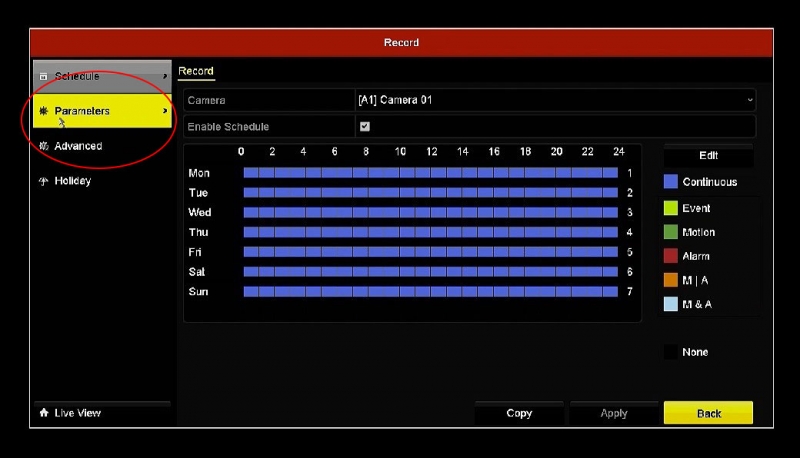
2. در صفحه باز شده از تب های سمت چپ گزینه Parameters را انتخاب کنید.
[/fusion_text][fusion_imageframe image_id=”8609|800″ max_width=”” style_type=”” blur=”” stylecolor=”” hover_type=”zoomin” bordersize=”1″ bordercolor=”” borderradius=”” align=”center” lightbox=”no” gallery_id=”” lightbox_image=”” lightbox_image_id=”” alt=”” link=”” linktarget=”_self” hide_on_mobile=”small-visibility,medium-visibility,large-visibility” class=”” id=”” animation_type=”” animation_direction=”left” animation_speed=”0.3″ animation_offset=””]https://hikvision.center/wp-content/uploads/2019/06/02-10-800×458.jpg[/fusion_imageframe][fusion_separator style_type=”single solid” hide_on_mobile=”small-visibility,medium-visibility,large-visibility” class=”” id=”” sep_color=”” top_margin=”60″ bottom_margin=”60″ border_size=”2″ icon=”” icon_circle=”” icon_circle_color=”” width=”” alignment=”center” /][fusion_text columns=”” column_min_width=”” column_spacing=”” rule_style=”default” rule_size=”” rule_color=”” hide_on_mobile=”small-visibility,medium-visibility,large-visibility” class=”” id=””]
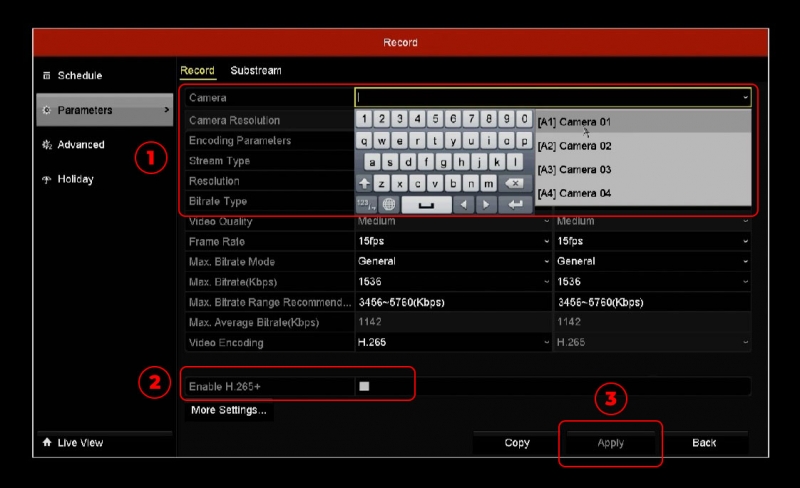
3. در قسمت مشخص شده دوربین مورد نظر خود را انتخاب کنید (1) در مرحله بعد تیک گزینه Enable H.265+د(2) را زده و آن را فعال کنید. سپس روی گزینه applyد(3) بزنید. در پایان دستگاه شروع به Reboot شدن کرده و پس از آن این قابلیت بر روی دستگاه فعال می گردد.
[/fusion_text][fusion_imageframe image_id=”8610|800″ max_width=”” style_type=”” blur=”” stylecolor=”” hover_type=”zoomin” bordersize=”1″ bordercolor=”” borderradius=”” align=”center” lightbox=”no” gallery_id=”” lightbox_image=”” lightbox_image_id=”” alt=”” link=”” linktarget=”_self” hide_on_mobile=”small-visibility,medium-visibility,large-visibility” class=”” id=”” animation_type=”” animation_direction=”left” animation_speed=”0.3″ animation_offset=””]https://hikvision.center/wp-content/uploads/2019/06/03-8-800×488.jpg[/fusion_imageframe][fusion_separator style_type=”none” hide_on_mobile=”small-visibility,medium-visibility,large-visibility” class=”” id=”” sep_color=”” top_margin=”60″ bottom_margin=”” border_size=”” icon=”” icon_circle=”” icon_circle_color=”” width=”” alignment=”center” /][fusion_text columns=”” column_min_width=”” column_spacing=”” rule_style=”default” rule_size=”” rule_color=”” hide_on_mobile=”small-visibility,medium-visibility,large-visibility” class=”” id=””]
مطالب مرتبط:
- آموزش ریست تنظیمات کارخانه در DVR هایک ویژن(Reset Factory)
- آموزش خروجی گرفتن ویدئو در DVR هایک ویژن
- نحوه تغییر نام دوربین در DVR هایک ویژن
- قیمت nvr هایک ویژن
[/fusion_text][/fusion_builder_column][/fusion_builder_row][/fusion_builder_container]
نظرات خود را با ما در میان بگذارید